How-to steps
Embedding the Signapse Plugin on your Wix site.
Important: To add the custom code to your site, you’ll need a paid Wix account.
- You’ll receive your custom-built Script Tag from one of our team members. It will look like the example below
Script Tag
<!-- Start of Signapse Web Translation Plugin Script Tag  -->
<script src="https://translations.signapsesolutions.com/" app-id="6aa07307-b2ce-4a48-a0d6-b6dd26f824f9" id="signapse" version="v2"></script>
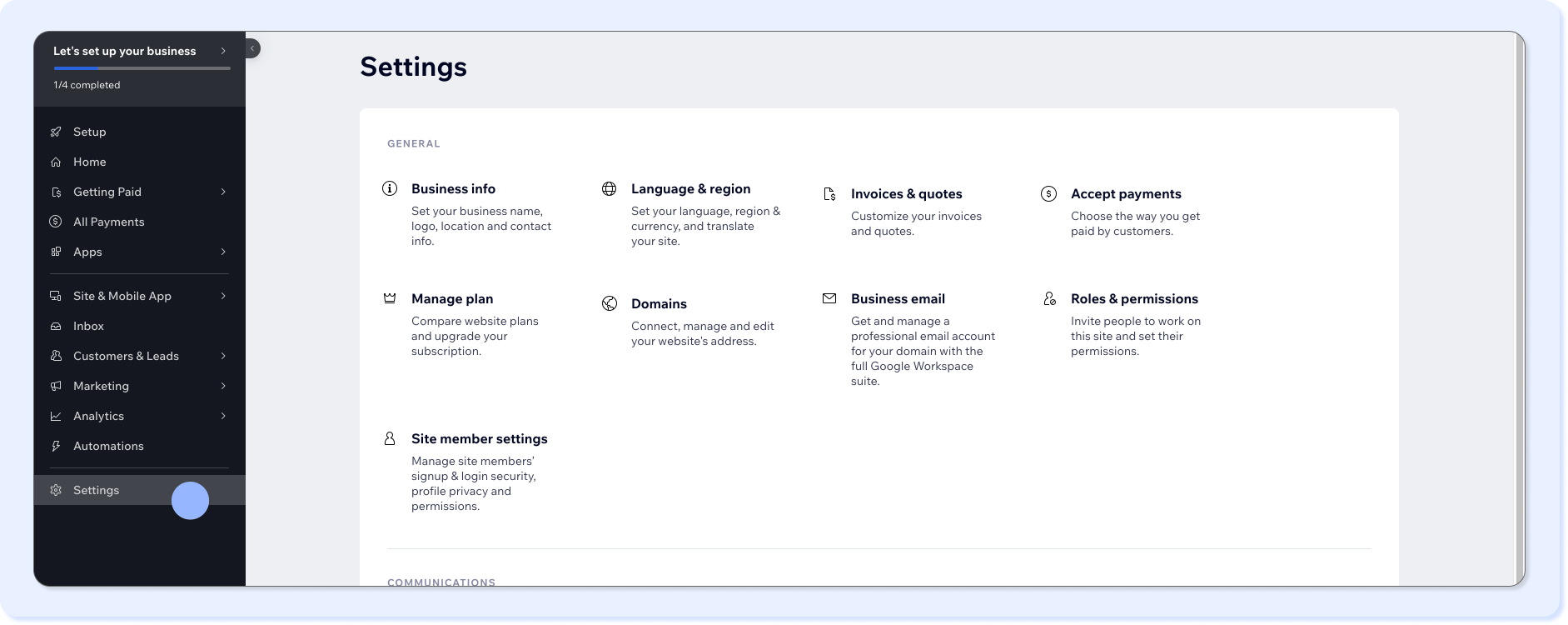
<!-- End of Signapse Web Translation Plugin Script Tag -->- Head over to your Wix Dashboard and on the left hand panel at the bottom click ‘Settings’.
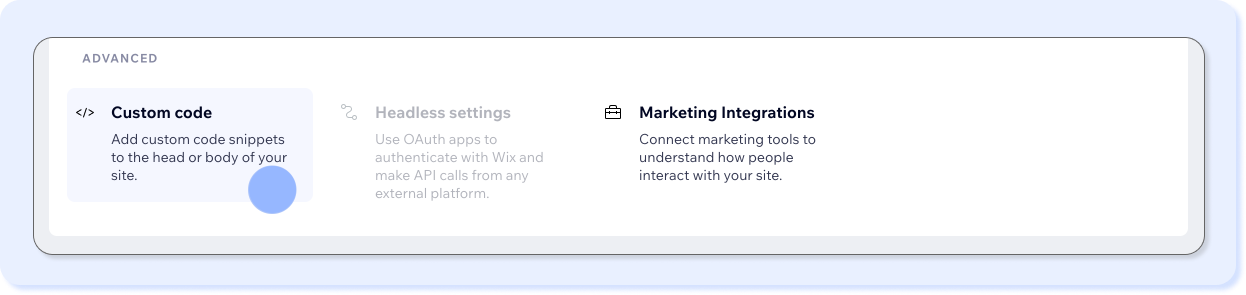
- Scroll down to the Advanced section and click ‘Custom code’.
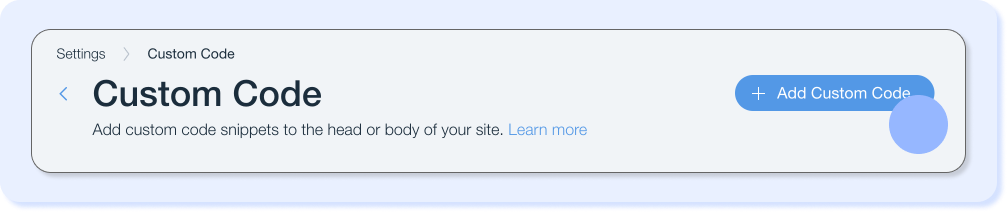
- In the custom code settings click ’+ Add Custom Code’
- Copy and paste your custom widget code (the script tag) → this is the script tag we went over in step 1. Copy and paste your custom code into the “Paste the code snippet here” field.
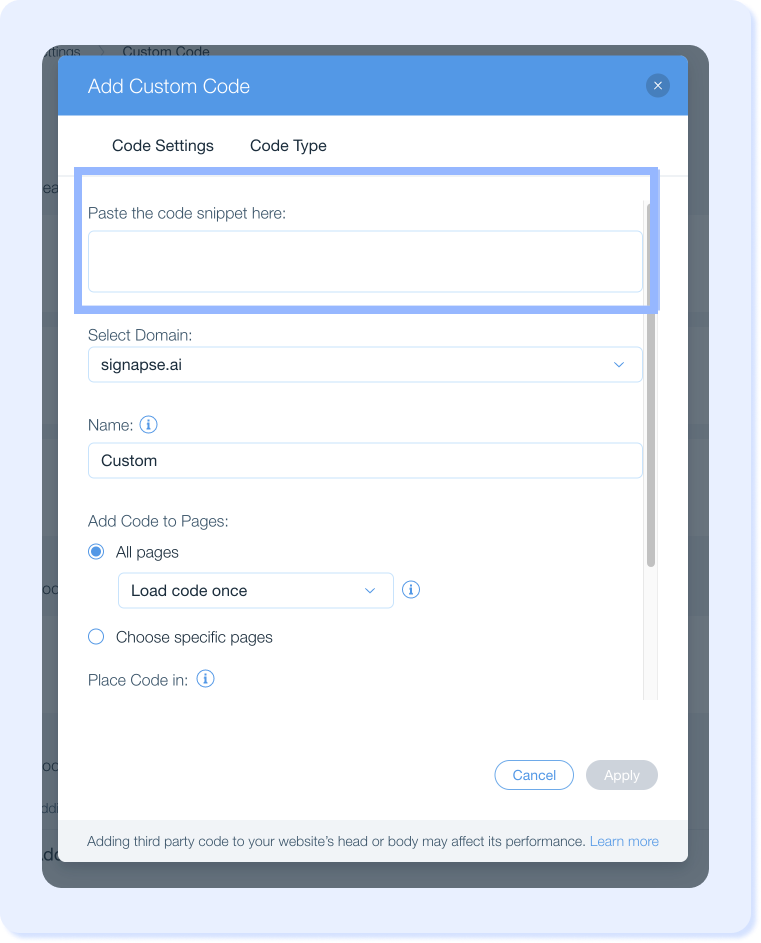
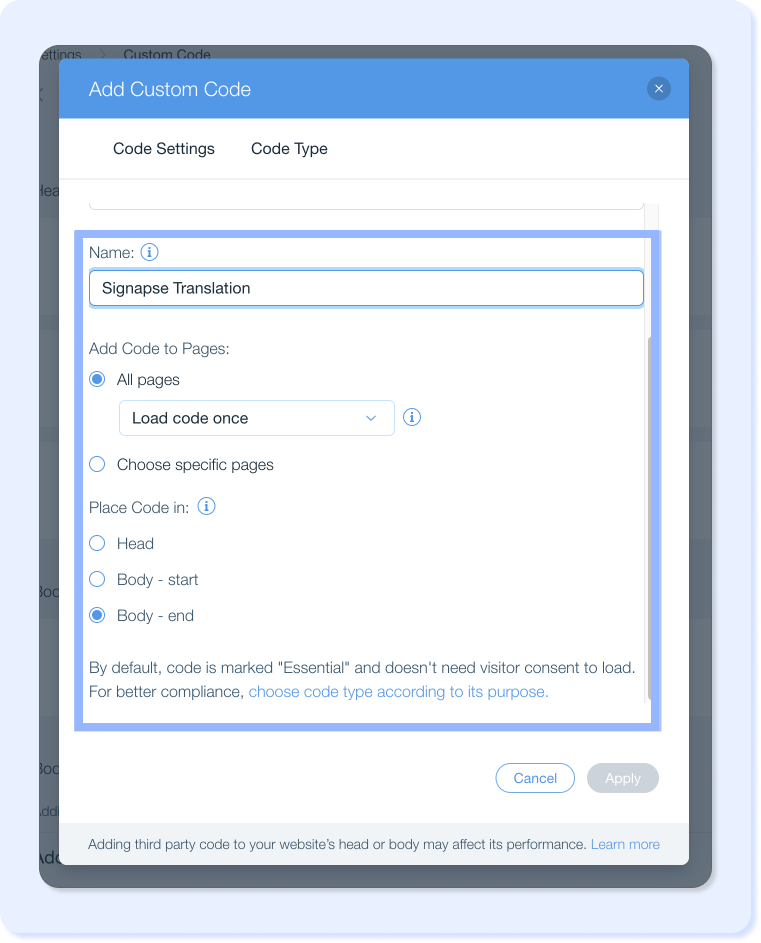
- Enter a Name for the code → we would recommend something that is easy to distinguish e.g., Signapse Translation. Select ‘All pages’ (the plugin internally will handle which pages to embed your widget on) and then select ‘Body-end’ for where to place the code in. Click ‘Apply’ ones all information is added.
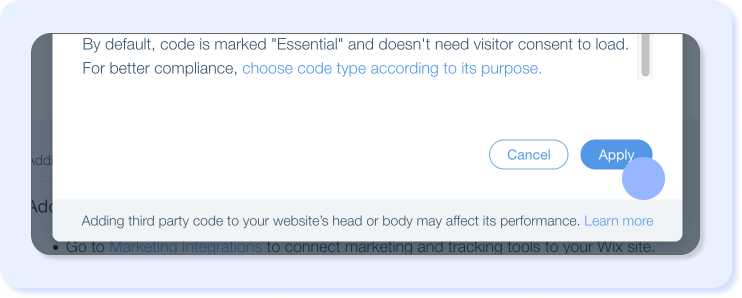
- Press ‘Apply’ to add your widget to your website.
Please note, it can take a moment for your website to update.
Support
If you have any issues or questions, please contact us at support@signapse.ai.
Last updated on